How to use My Shows
Everything below happens in your own browser — nothing to install, nothing to configure.
Adding a show
- Tap the + button on the main screen.
- Search for the show by name. Results come from TVmaze's free database, so results appear as you type.
- Tap the show to select it.
- Optionally note where you're watching it (Hulu, Netflix, whatever you use).
- Enter the last season and episode you watched — or leave both blank if you haven't started. This tells My Shows exactly what to line up as your next episode.
- Tap Add show. It'll appear in the right category automatically.
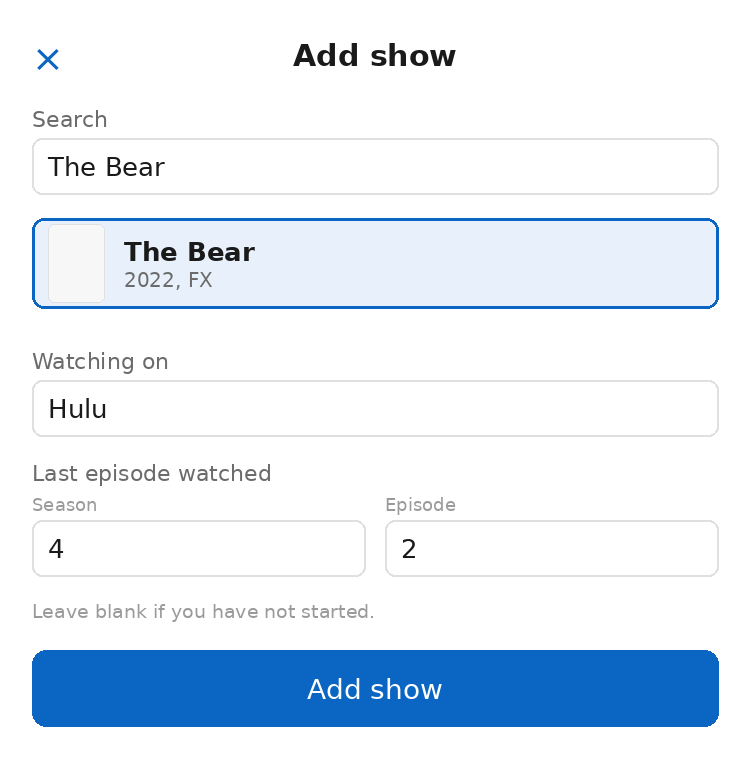
The add show screen
The four categories
Every show you track lands in exactly one of four groups, based on what's happening with it right now:
Available now
The next episode you haven't watched has already aired. Tap "Mark watched" and it moves straight to the following episode.
Upcoming
The next episode has a known future air date. Shows a countdown so you know when to check back.
Pending return
You're caught up, the show has been renewed, but no return date has been announced yet.
Completed
You've watched every episode and the series itself has ended — or you've suspended it (see below).
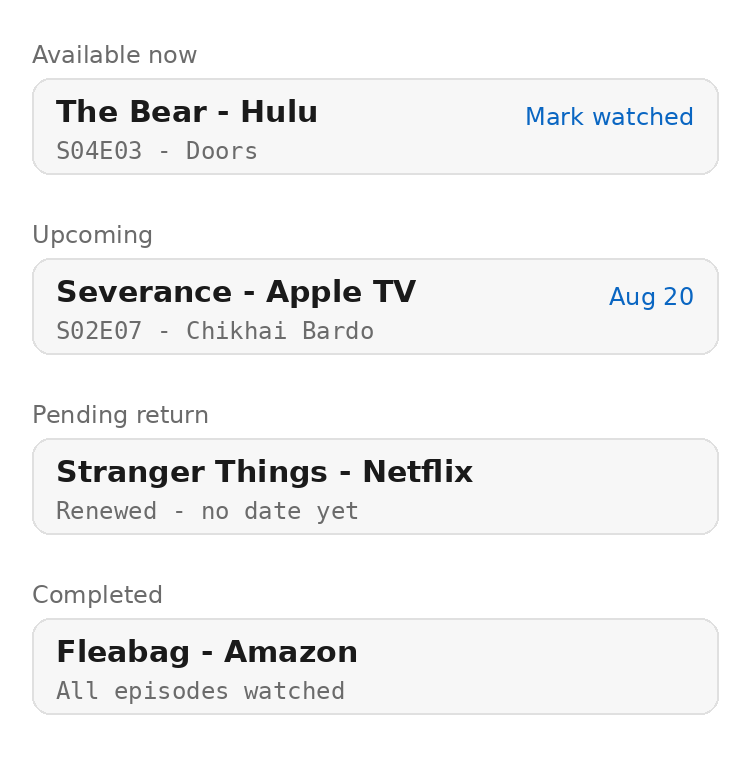
One example show in each category
Suspending a show
Want to stop tracking a show without losing your place or deleting your history? Open the show's detail screen and tap Suspend series.
- It moves into Completed, tagged "Archived" with today's date.
- Your last watched episode and how many episodes/seasons were left are recorded at the moment you suspend it, so you can see exactly where you left off later.
- Nothing is deleted — your watch progress is preserved untouched.
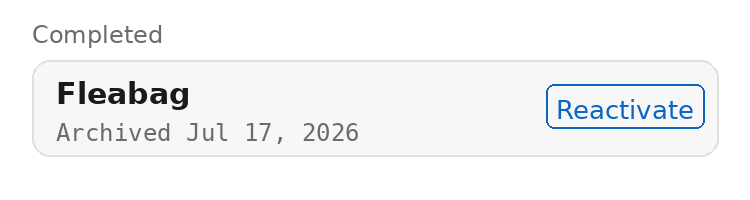
An archived show, with a Reactivate button
To pick a suspended show back up, tap Reactivate on its row (or "Reactivate series" on its detail screen). It returns to whichever category its actual progress puts it in — exactly as if it had never been suspended.
Deleting a series
Deleting is different from suspending: it's permanent. On the show's detail screen, Suspend series and Delete series sit next to each other — it's worth knowing which is which before you tap.
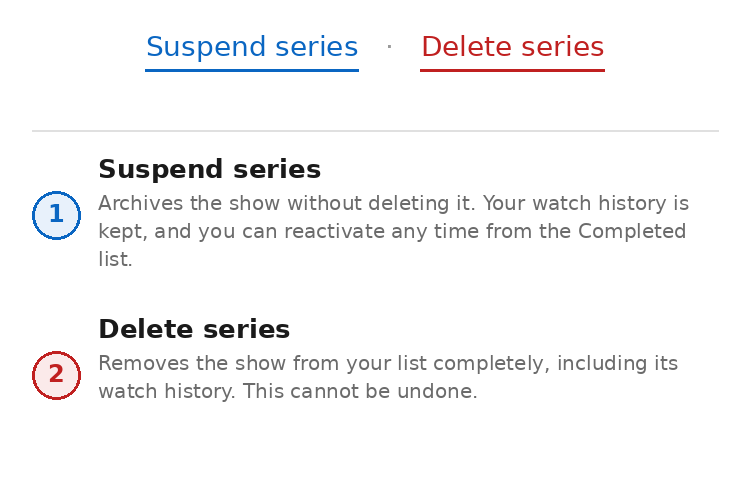
Suspend keeps your history. Delete removes it for good.
Tapping Delete series immediately removes the show and its watch history from your list. There's no confirmation step and no undo — if you might want the show back later, use Suspend instead.